

+91 9959708805
Email: contact@tecxtreme.com
TECXTREME
Vasavi's Indra Prastha, 7-2-1813/5/A/1, Flat no. 542, Czech colony, Street no.1, Sanathnagar, 500018, Hyderabad, Telangana, India
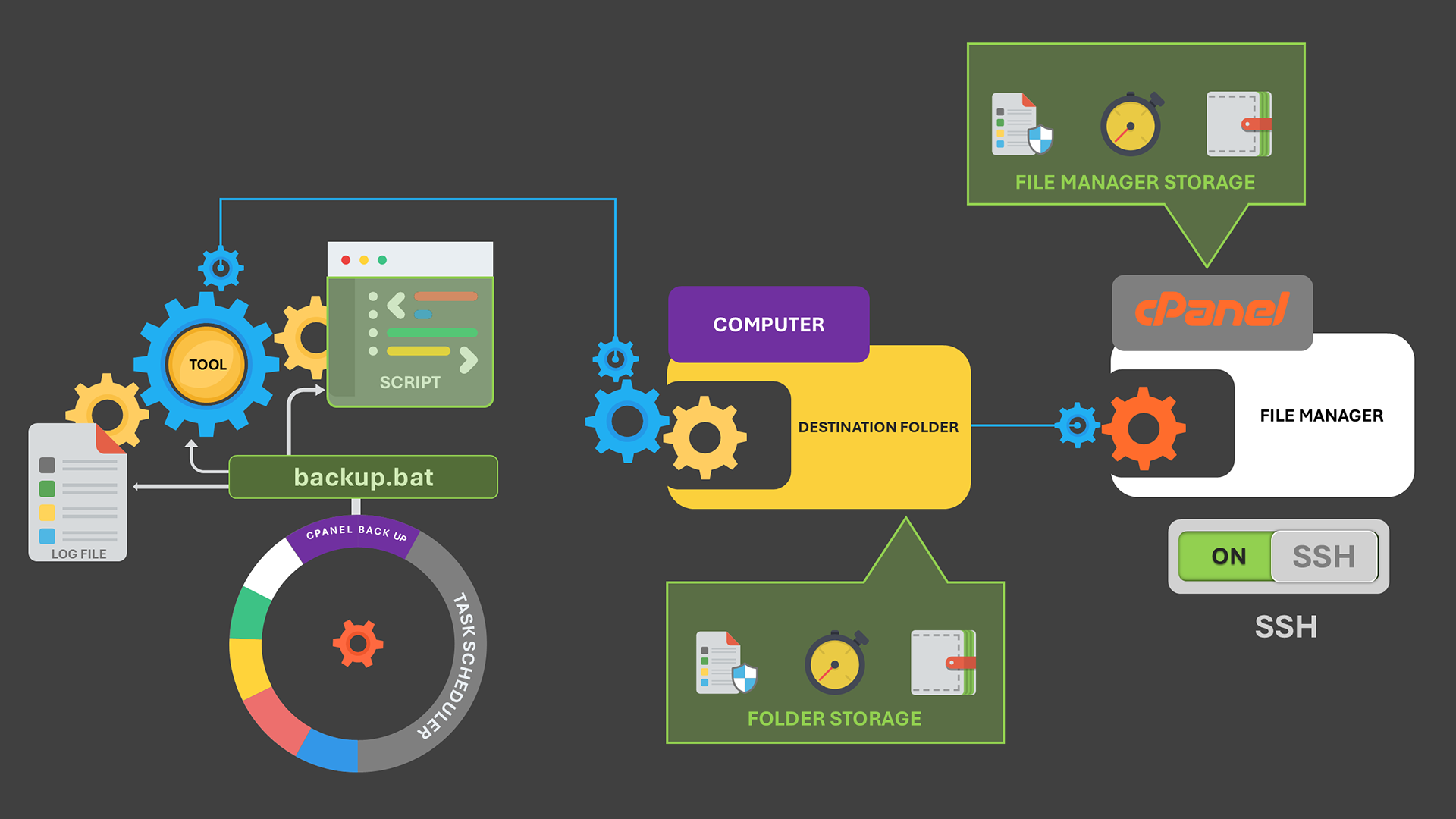
How to Automatically Back Up cPanel to Your Local Computer

Download and install the free tool called WINSCP from here.
Open text file and copy the script below into it and replace the Cpanel credentials and paths (local and remote) to yours. And save the file as cpanel_backup_script.txt.
# Ensure the script does not stop if connection errors occur
option batch continue

# Keeps retrying indefinitely until the connection is restored
option reconnecttime 9999

# Open SFTP connection
open sftp://cpaneluser:yourpassword@your-cpanel-server.com -hostkey="*"

# Set local and remote directories for backup
lcd "C:/Users/nuvsj/cPanel_Backup"
cd "/home/cpaneluser/public_html"

# Keepalive workaround: upload and download an existing small file
put "C:/Users/nuvsj/cPanel_Backup/keepalive.txt" "/home/cpaneluser/public_html/keepalive.txt"
get "/home/cpaneluser/public_html/keepalive.txt" "C:/Users/nuvsj/cPanel_Backup/keepalive.txt"

# Synchronize: Download only new and modified files
synchronize local -criteria=size -delete

# Ensure directory change is explicit before the next sync
cd "/home/cpaneluser/mail"
lcd "C:/Users/nuvsj/cPanel_Backup/mail"

# Keepalive workaround again before syncing
put "C:/Users/nuvsj/cPanel_Backup/keepalive.txt" "/home/cpaneluser/mail/keepalive.txt"
get "/home/cpaneluser/mail/keepalive.txt" "C:/Users/nuvsj/cPanel_Backup/mail/keepalive.txt"

# Synchronize: Download only new and modified files
synchronize local -criteria=size -delete
close

# Exclude specific directories from being backed up
# -filemask="|cache/;logs/;tmp/"

# Resume any unfinished transfers
# get -resume *

# Exit the script
#exit
Open another empty text file and save it as cpanel_Backup.log. It’s a log file to which the WINSCP will record all the success & failure messages related to script execution and the back-up process.
Open another new text file and copy below command and arguments into it and save the file with the name cpanel_Backup.bat. cpanel_Backup.bat is the executable which upon clicking, begins the backup process.
@echo off
"C:\Program Files (x86)\WinSCP\WinSCP.com" /script="C:\Users\nuvsj\cPanel_Backup\cPanel_Backup_Script.txt" /log="C:\Users\nuvsj\cPanel_Backup\cPanel_Backup.log"
exit
Now open the “Windows task scheduler” and create the task, with the action to open “cpanel_backup.bat” at your preferred interval (scheduled with trigger).
That’s it!